

What would you like to do?
How to create a Payments Report
Navigate to "Donation reports", click on the "Income" tab, you'll see this:

Put in the last six digits of the LGTXN reference number found on your bank statement or in your "You've just received donations..." email, you'll be able to then click ".CSV download" button in red on the right-hand side:

This will download the LGTXN report breakdown as an excel file.
Messaging and communicating with donors
You are welcome to message any donors or supporters via the Supporters tab on your dashboard. If they have consented to being contacted via email, you are welcome to email them directly as their email address will only be shown in the interface and in the marketing report if they have given consent.
If there is no email address, you can still message them via the Supporters tab.
How to create a marketing report
Our marketing report gives you the information of everyone who’s opted in or out of communications.
You can find our marketing report on the Supporters page under the .csv download - if anyone has their email/address visible, they've opted in to sharing that info with your org:

Adding users to your account
You might want colleagues to also access and use the Localgiving platform.
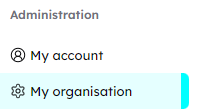
If so, you can manage user access to your account via the “My organisation -> Manage users” links under the ‘Administration’ header of your Charity dashboard:
On this page, you’ll be able to invite new users to your account by clicking the blue ‘Invite users’ button and filling in the relevant information:
Which opens up:

A user’s role can either be a User, Finance, Administrator or Owner.
Owners control the entirety of the account; Finance users have access to financial information and receive finance emails pertaining to your organisation; Administrators have the same level of access/control as Owners without owning the account; and Users can create Fundraisers and update the Charity page without receiving any finance emails.
Changing organisation addresses, account log-in emails, etc
You can manage organisation information in your account via the “My organisation” link under the ‘Administration’ header of your Charity dashboard:
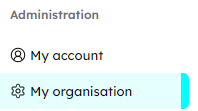
Here, you can update the name displayed on your account, as well as the contact number and email for the account (this will be the owner’s email, so we recommend a generic info@ or admin@ email address).
Need more help? Contact us directly here and one of our Community Team will assist you.